Field placement
Signature, initials, date and text fields on any page.
Run the job · E-signatures
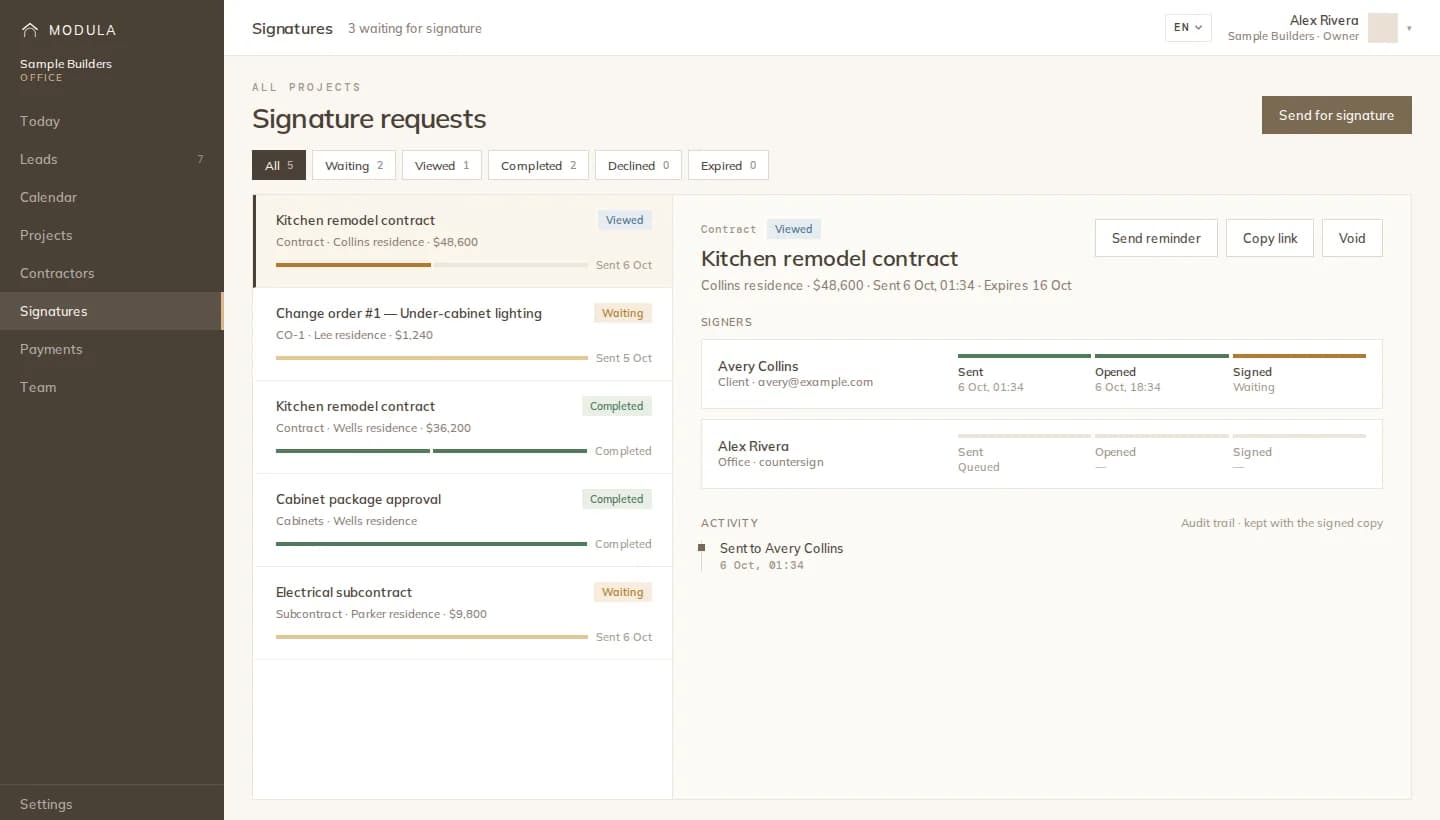
Place signature, initials, date and text fields on any PDF, send it to the client in your own office's name, and countersign last. Signers need no account, reminders go out on their own, and everyone gets the signed PDF.
How it works
Drag signature, initials, date and text boxes onto the pages and assign each one to a signer. Mark them required or optional.
The client or clients, or a contractor, plus the office countersigning if you want. Send in order or to everyone at once, and add people to copy.
Each signer gets an email from your office with a Review & sign button. They draw or type their signature on a secure page.
When the last signer finishes, the fields are stamped, the audit trail is added, and the signed PDF goes to every signer, copy and you.
Tracking
Waiting, viewed, completed, declined, expired or voided, per document and per signer. A declined signature carries the signer's reason. Send a reminder, resend, or let automatic reminders do it.
Money follows the signature
When a contract or change order is signed, its payment schedule becomes the project's payments, and a signed change order moves the project schedule by the days it adds.
What you get
Signature, initials, date and text fields on any page.
In order or all at once; the next signer is emailed when the previous one finishes.
The office signs last, so the client's signature comes first.
Signers see your office's name and details, not ours.
Send one now, or let them go out automatically.
Each step recorded and appended to the signed PDF.
The details
Contractors and clients sign separately: a contractor's signing request never shows the client's payments.
FAQ
Works with
Place the fields, send it in your name, and let reminders do the chasing.